
Workspace tour
Wisdom Pro does everything in one main window. It has four parts.
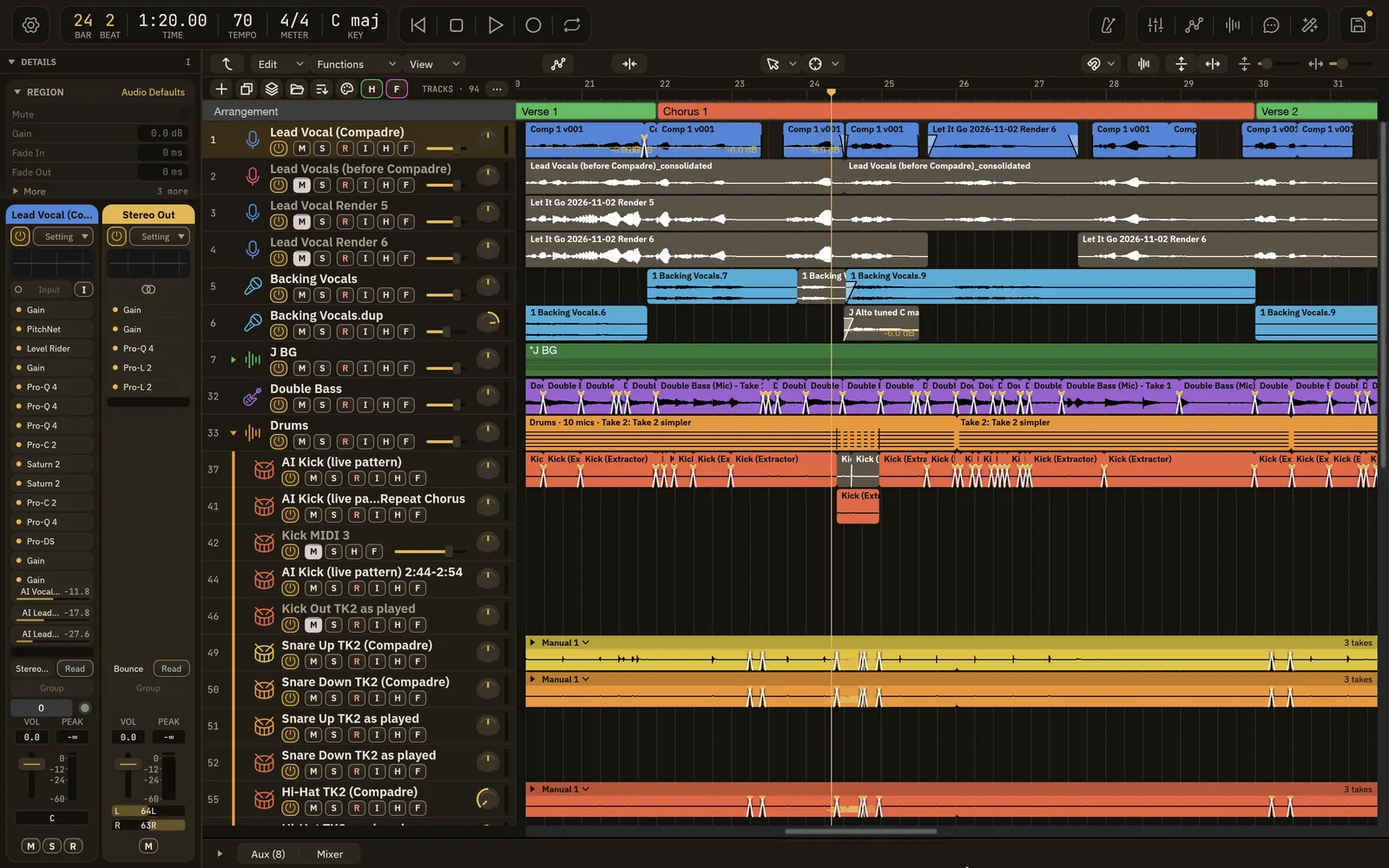
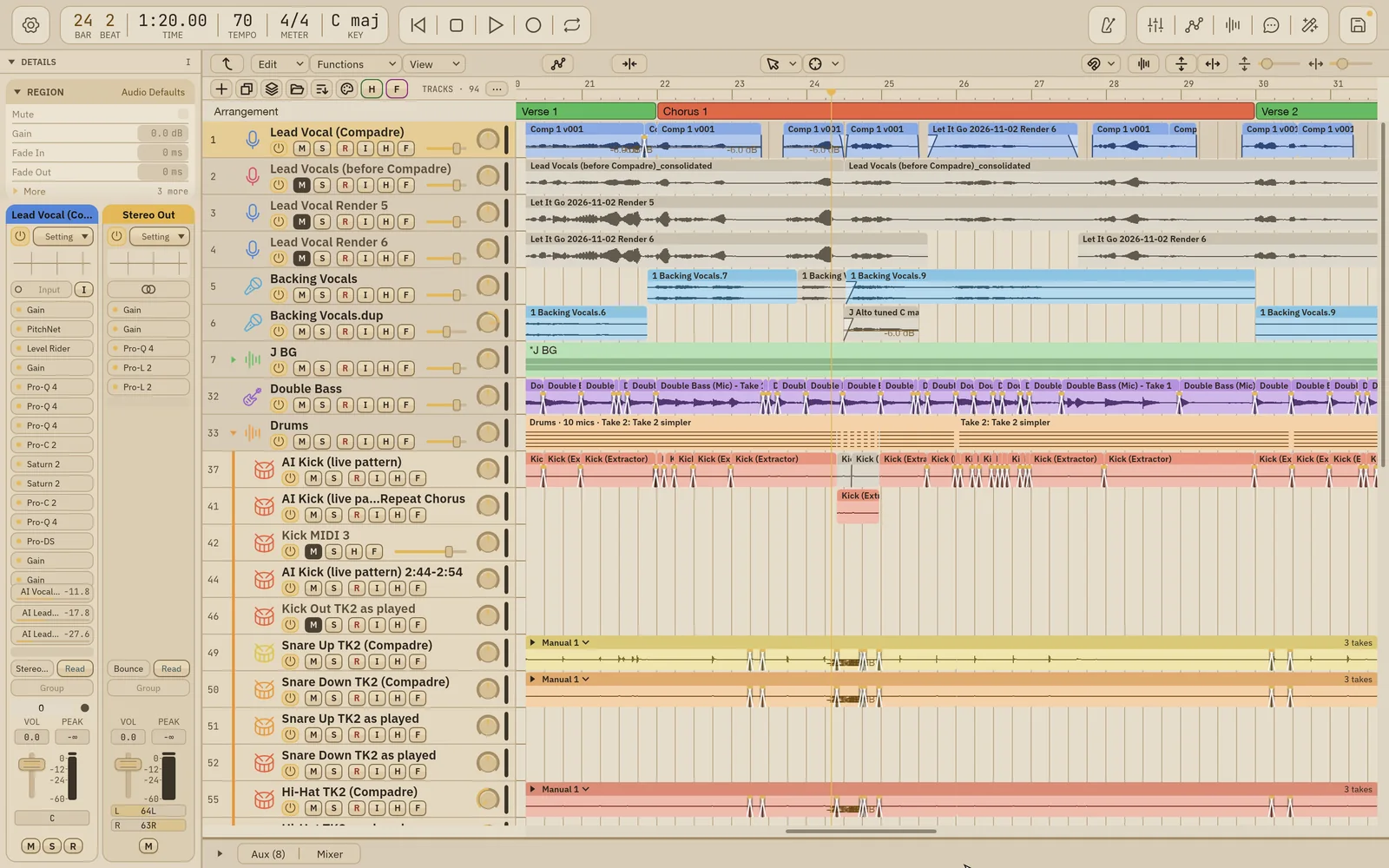
| Part | Where | What it’s for |
|---|---|---|
| Header | Across the top | Every command (gear menu), position and tempo, transport, and buttons for the mixer, automation, Compadre, Assistant, AI Mix and Save. |
| Details panel | Left side | Settings for the selected region, track and group, plus the selected track’s channel strip and where it goes. |
| Tracks area | Center | Your tracks and regions on the timeline, with tools, snap, zoom and the arrangement. |
| Mixer | Bottom area | A channel strip for every track, bus and output. |
Show and hide
Section titled “Show and hide”| Part | Key | Also from |
|---|---|---|
| Details panel | I | View › Show Details, or the triangle next to DETAILS |
| Mixer | X | The Mixer button in the header, or Window › Mixer (⌘2) |
| Aux channels | ⇧⌥U | The Aux tab in the bottom area |
| Automation lanes | A | The Automation button in the header |
| AI Mix | ⇧⌘M | The AI Mix button in the header |
| Compadre | ⇧⌘C | The Compadre button in the header |
The bottom area shows one tab at a time: Aux or Mixer. Pressing X while the mixer is showing folds the bottom area down to its tabs. Drag the line above the bottom area to make it taller or shorter. Wisdom Pro remembers the bottom area per song.
Drag the Details panel’s right edge to resize it.
The Wisdom look
Section titled “The Wisdom look”These pages show the Wisdom look. To switch to it, choose Wisdom Pro › Settings › Appearance and pick Wisdom under Look. See Settings.
Where commands live
Section titled “Where commands live”- The macOS menu bar has File, Edit, Track, Navigate, Record, Mix, View, Window and Help.
- The gear menu at the left of the header has the same commands, a search field to find any command by name, and Settings. It works in full screen too.
- Help › Keyboard Shortcuts… lists every key command. See Keyboard shortcuts.
Built so far:1,292 hours24.1 billion tokensabout $8,700 at API pricesupdated Nov 21, 2026 What these numbers mean