
Mixer
The mixer shows a channel strip for each track, Summing Stack, aux and output. It opens in the bottom area of the main window.
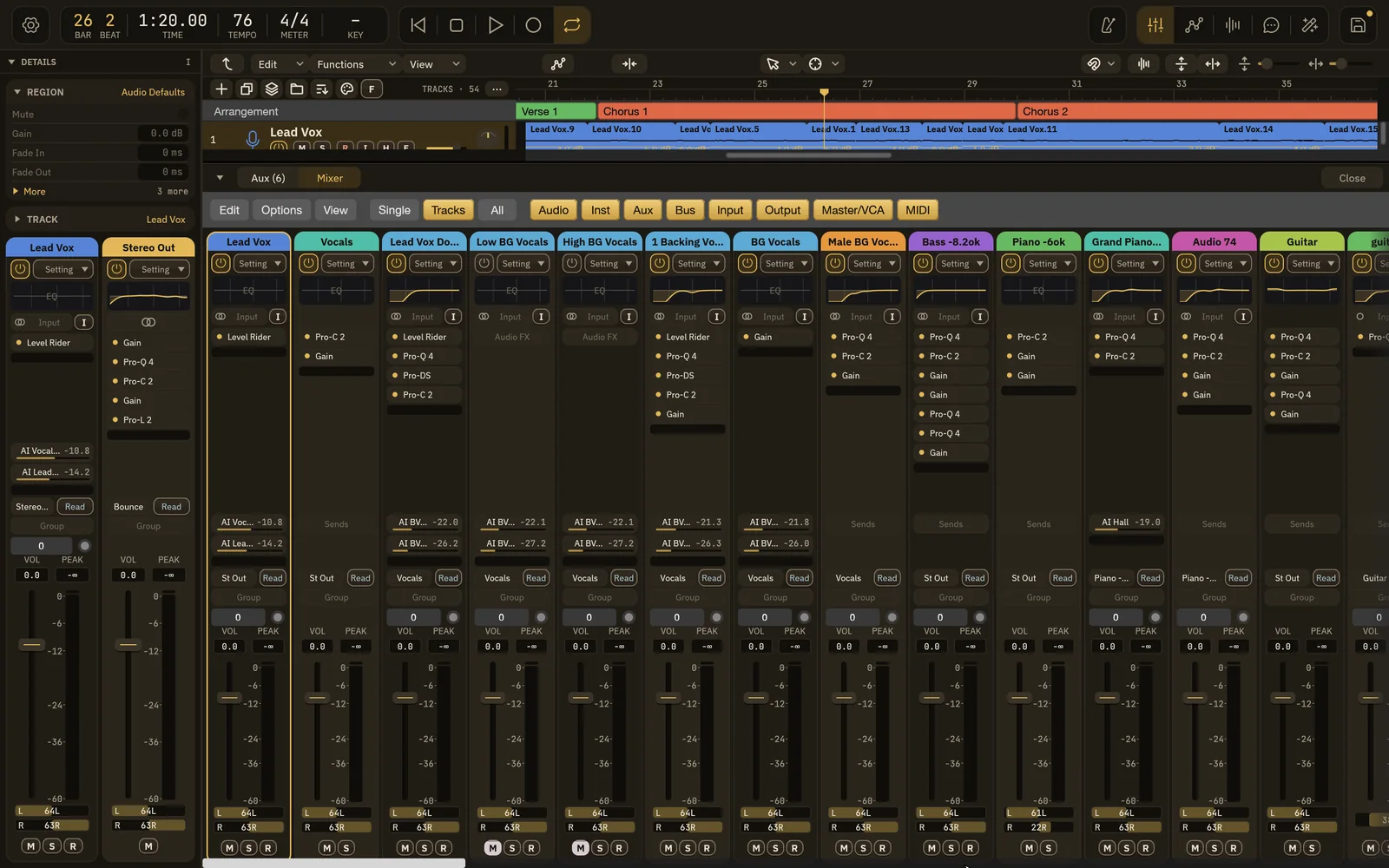
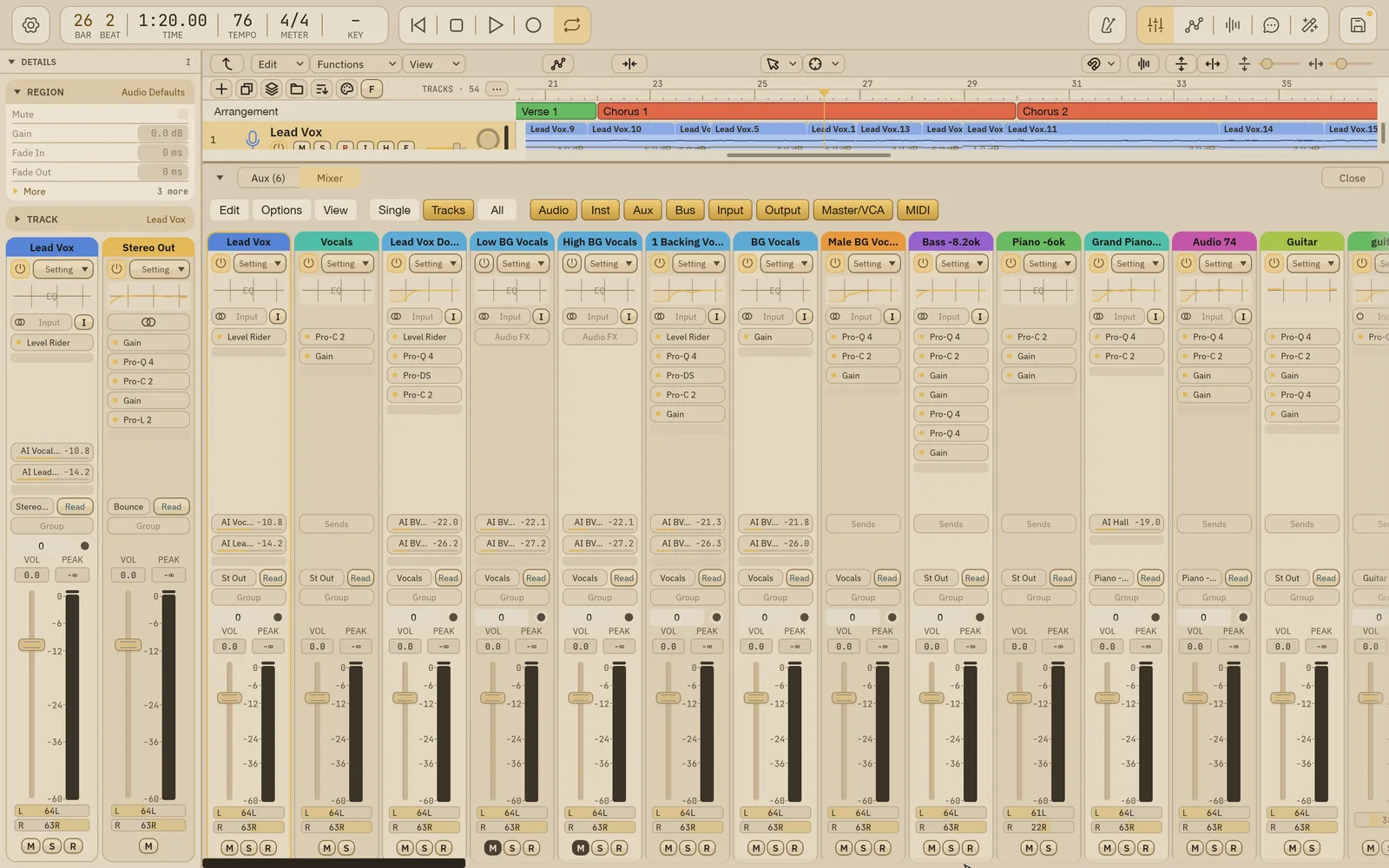
Open the mixer
Section titled “Open the mixer”- Press X, or click the Mixer button in the header. Press X again to fold the bottom area down to its tabs.
- Window › Mixer (⌘2) does the same.
- The bottom area’s tabs switch between Aux and Mixer. The Aux tab shows your aux channels and the number of them, such as Aux (3).
- Drag the line above the bottom area to change its height. When the strips don’t fit, scroll them up and down.
The Details panel shows the same strip for the selected track. See Details panel.
Toolbar
Section titled “Toolbar”- Edit: Undo, Redo, Select All Channels and Deselect All.
- Options: Clear Peak Holds and Clip Indicators.
- View: Signal Flow Channel Strips (also show the output in Tracks view), Show Legend / Hide Legend, and Show All Channel Types.
| View | Shows |
|---|---|
| Single | The selected track and every channel its signal flows through. |
| Tracks | The channels of the tracks in the tracks area, in track order. |
| All | Every channel in the song. |
Channel type filters
Section titled “Channel type filters”Click a type to show or hide its strips: Audio, Inst, Aux, Bus, Input, Output, Master/VCA and MIDI. View › Show All Channel Types turns them all back on.
Channel strip
Section titled “Channel strip”From top to bottom:
| Control | What it does |
|---|---|
| Name | The channel’s name. Click to select the channel. |
| Setting | Channel strip settings. The power button beside it bypasses or enables all of the strip’s plug-ins. |
| EQ | A small picture of the channel’s EQ curve. Click it to open the Channel EQ. Gain reduction shows along its bottom edge. |
| Input | The track’s input. The I button beside it is Input Monitoring. |
| Audio FX | The plug-in slots, in signal order. Click an empty slot to add a plug-in. Hover a slot for its power button. See Plug-in hosting. |
| Sends | Each send shows its bus, its level in dB and a level bar. Click an empty slot to add a send. |
| Output | Where the channel goes, such as the Stereo Out or a bus. On the Stereo Out this slot is Bounce, which opens Bounce. |
| Automation mode | See Automation mode. |
| Group | The linked group the channel belongs to. |
| Audio Device | The input trim. |
| VOL / PEAK | The fader’s level, and the highest peak so far. PEAK turns red above 0 dBFS. Click it to reset. |
| Fader and meter | Drag the fader to set the level. The dB scale sits between the fader and the meter. Click the clip indicator to clear it. |
| Pan | The pan position. A stereo track with dual pan shows two fields, one for each side. ⌥-click to center. |
| M S R | Mute, Solo and Record Enable. |
The Setting menu also has Bypass All Audio FX (or Enable All Audio FX), Remove All Audio FX and Reset Volume and Pan.
Every strip control changes the song and can be undone.
Automation mode
Section titled “Automation mode”The automation mode on each strip sets how the channel’s automation lanes play and record:
| Mode | What it does |
|---|---|
| Off | Automation is neither played nor recorded. The lanes keep their data. |
| Read | The lanes move the controls. Nothing is recorded. |
| Touch | Records while you hold a control, then glides back to the lane. |
| Latch | Records from the first touch and holds the last value until playback stops. |
| Write | Overwrites the armed lanes from the moment playback starts. |
Relative (trim), available with Touch and Latch, records volume, pan and send moves as an offset on top of the existing lane, so its shape is kept. The strip then shows the mode with Rel. Merge Relative Automation folds those offsets into the lanes without changing the sound.
Stereo Out
Section titled “Stereo Out”The Stereo Out strip is the song’s main output. Its output slot reads Bounce and opens the Bounce window. See Bouncing.
Summing Stacks in the mixer
Section titled “Summing Stacks in the mixer”A Summing Stack has its own strip that carries the summed signal of its tracks. Its plug-ins, sends and fader act on the whole stack. In Single view, select a track inside the stack to see the track, the stack and the output together.
Built so far:1,292 hours24.1 billion tokensabout $8,700 at API pricesupdated Nov 21, 2026 What these numbers mean