
Header
The header runs across the top of the main window. From left to right: the gear menu, the position display and the transport. On the right are the metronome, the panel buttons and Save. The window’s title bar above it shows the song’s name.
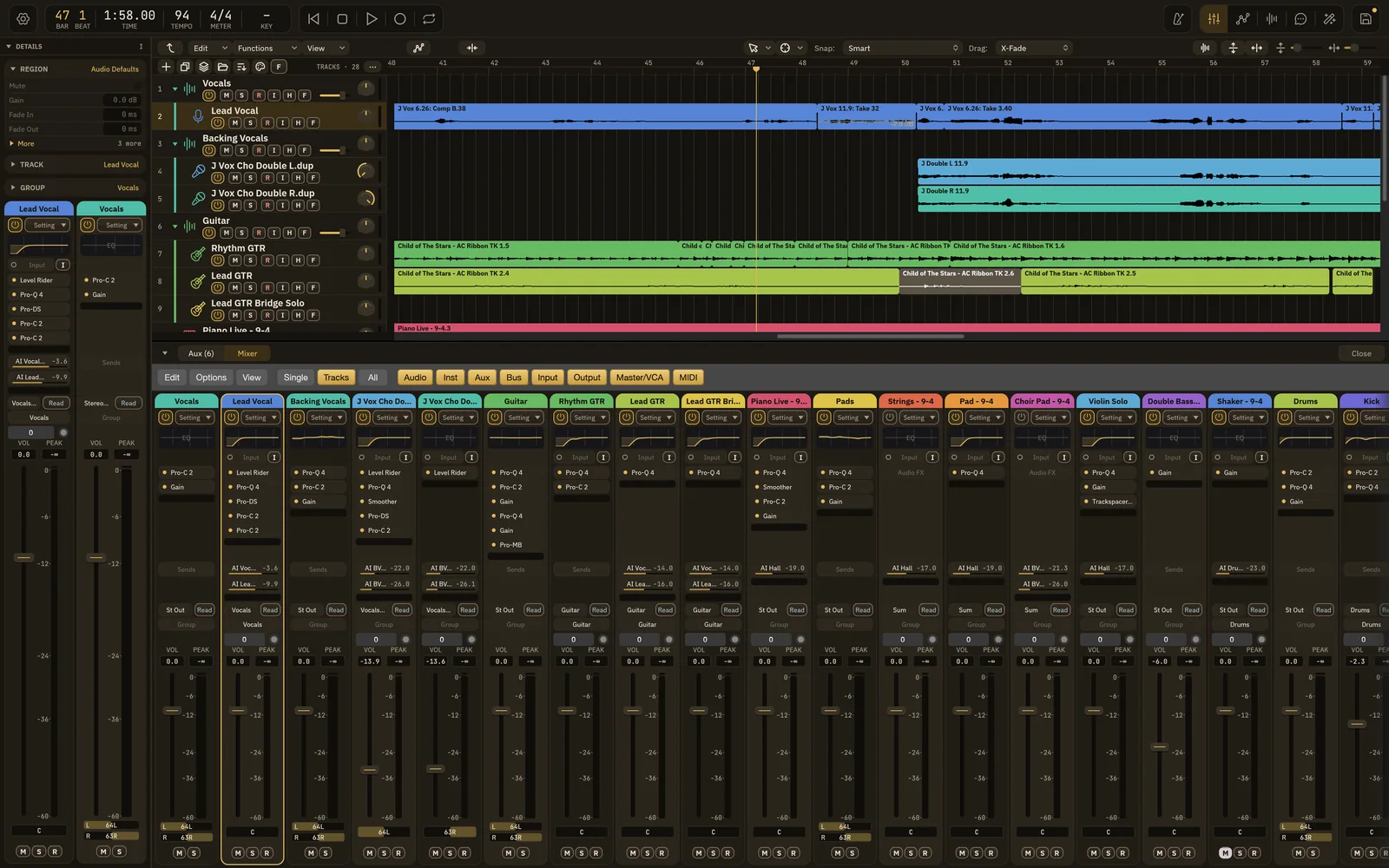
Gear menu
Section titled “Gear menu”The gear button at the far left opens a menu with every command. At the top:
- A search field. Type part of a command’s name to show only the matching items.
- Save, Save As…, Open Recent and Bounce….
Below those are the same menus as the macOS menu bar (File, Edit, Track and so on), a Mix menu, Help (with Keyboard Shortcuts… and All Commands), Settings, and Quit Wisdom Pro.
The gear menu stays available in full screen, when the macOS menu bar is hidden.
Position display
Section titled “Position display”The position display shows where the playhead is and the song’s basic settings:
| Section | Shows | Change it |
|---|---|---|
| BAR / BEAT | The playhead’s bar and beat | |
| TIME | The playhead’s time, as minutes:seconds.hundredths | |
| TEMPO | The tempo at the playhead | Double-click and type a new tempo |
| METER | The time signature at the playhead | Double-click to change it |
| KEY | The song’s key, such as G maj, or a dash when it isn’t set |
Double-click to pick or type a key |
The song’s key is used by AI Tune, which tunes vocals toward it.
Transport
Section titled “Transport”| Button | Key | What it does |
|---|---|---|
| Go to Beginning | Return | Moves the playhead to the start. |
| Stop | Stops playback. Double-click to stop and go to the beginning. | |
| Play | Space | Starts or stops playback. |
| Record | R | Starts recording on record-enabled tracks. It turns red while recording. |
| Cycle | C | Turns cycle (loop) playback on or off. |
When playback has to wait for something to finish first, the Play button shows a spinner, and its tooltip says what it’s waiting for.
Metronome and panel buttons
Section titled “Metronome and panel buttons”| Button | Key | What it does |
|---|---|---|
| Metronome Click | Turns the click on or off. | |
| Mixer | X | Shows or hides the mixer in the bottom area. |
| Automation | A | Shows or hides automation lanes in the tracks area. |
| Compadre | ⇧⌘C | Opens the Compadre screen. |
| Assistant | Opens the AI Assistant. Not available while a full screen such as Compadre is open. | |
| AI Mix | ⇧⌘M | Opens AI Mix. |
A lit button means that panel is open. While AI Mix is running, its button fills gold and a ring around the icon shows the progress. A short progress label, such as “AI Mix working…”, also appears in the header while the AI Mix window is closed.
The Save button at the far right saves the project, like ⌘S. A small gold dot on it means there are unsaved changes. See Opening and saving.
Status line
Section titled “Status line”Messages from saving, recovery and other commands appear in a thin line along the bottom of the header.
- Click a save or recovery message to open Save & Recovery.
- Click an “Audio overload” message to open the Audio settings, where you can raise the buffer size.
Built so far:1,292 hours24.1 billion tokensabout $8,700 at API pricesupdated Nov 21, 2026 What these numbers mean