
Matching a reference
Every AI Mix decision starts from a reference: a finished song you want your mix to sound like, or a stem of one (Drums, Bass, Lead Vocals and so on). This page covers adding references, comparing a target with its reference, and matching one target at a time.
Adding reference files
Section titled “Adding reference files”- On the AI Mix screen, open the References drawer.
- Press Add files…, or drop audio files onto the drawer.
- Drag a row by its grip to change the order. The order is saved with the song.
Reference files are not tracks. They never appear in your bounces or in measurements of your mix.
Use a full song for the Full mix and the matching stem for a Summing Stack or a track (the drum stem for your Drums stack, the vocal stem for your lead vocal).
Linking references to targets
Section titled “Linking references to targets”When a target has no reference yet, AI Mix chooses one by name: the full song for the full mix, and the stem of the same name or kind for a stack or track. These links are marked as automatic.
- To change a link, select the target and choose a reference from the Compared with menu in the Detail header, or from the menu on the target’s row.
- Choosing None is remembered; new reference files will not overwrite it.
- Auto-link under the target list links any remaining targets by name. Links you chose by hand are kept.
- A track inside a Summing Stack that has no reference of its own is matched with its stack, as part of the stack’s sound.
Reference links are saved with the song and are undoable.
Comparing a target with its reference
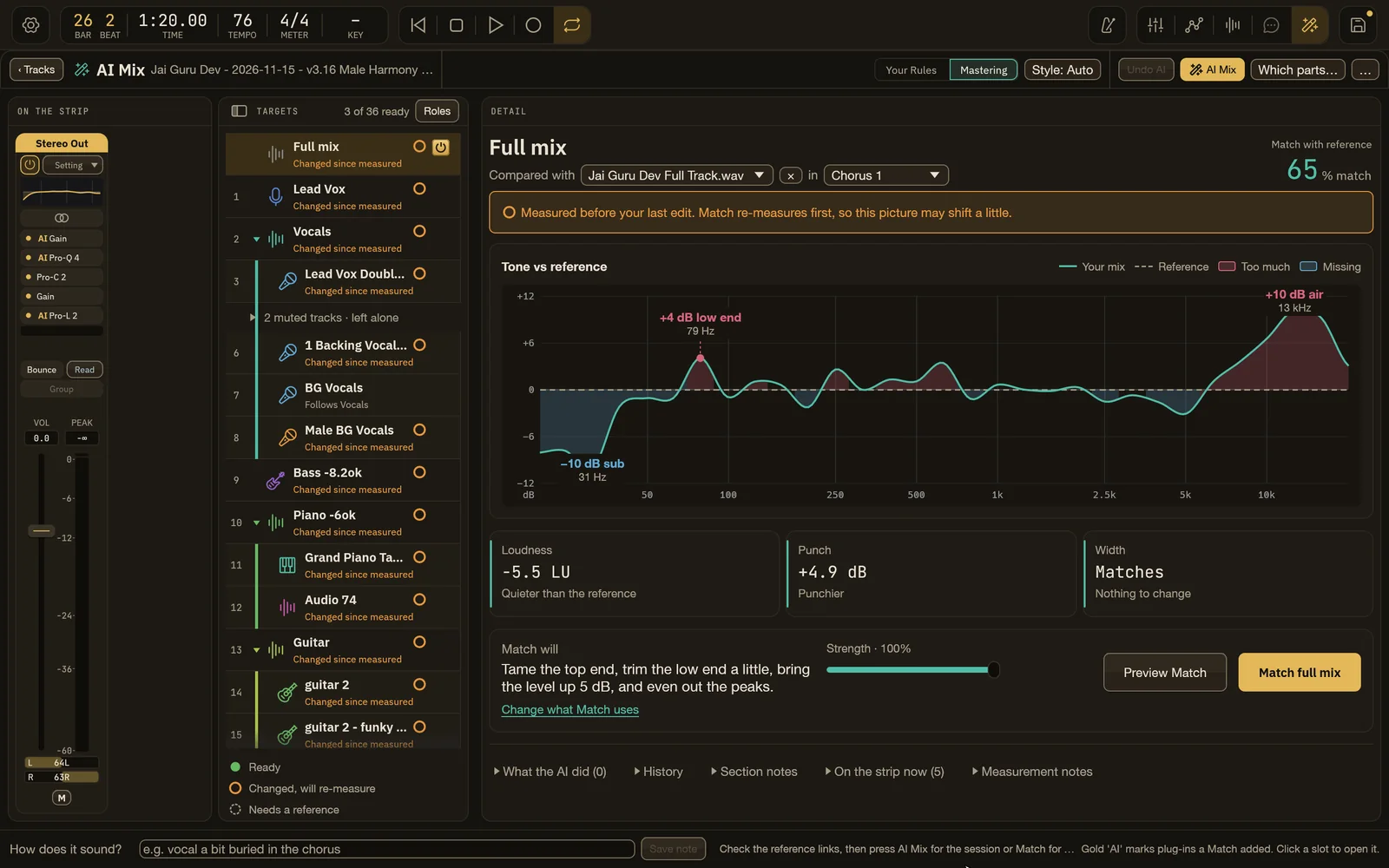
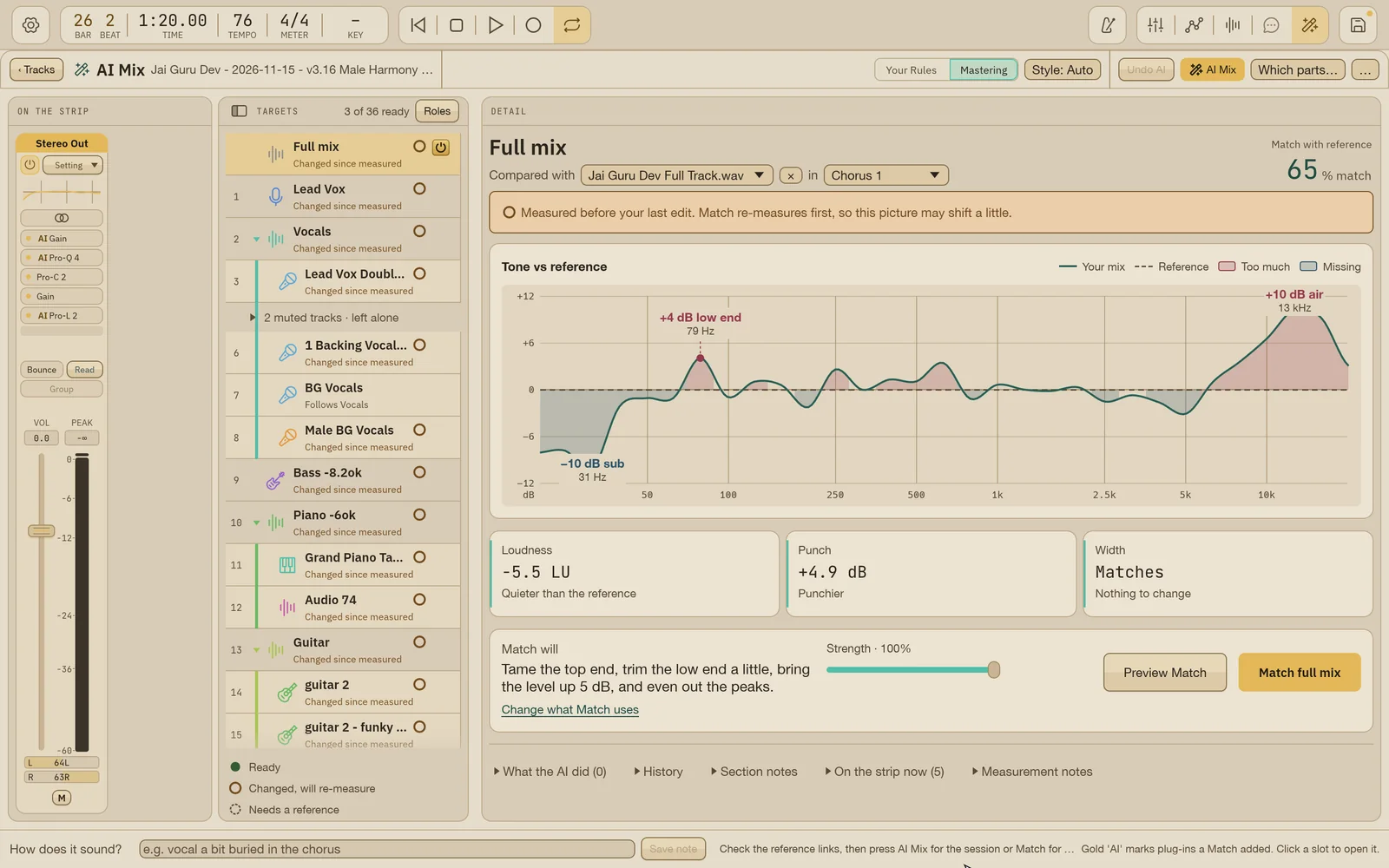
Section titled “Comparing a target with its reference”Select a target. The Detail panel answers one question: how far is this target from its reference, and what will Match do about it?
- Compared with [reference] in [section]: the reference and the song section being compared. Without a section choice, the first chorus is used. If the reference has section markers, a chorus is compared with the reference’s chorus.
- % match: how close the target’s tone is to the reference. 100% minus a tenth for every dB of difference across the bands, level-matched; 0% at 10 dB or more.
- Tone vs reference chart: your target’s measured tone (solid line) against the reference (dashed), at matched level. Gold shading shows where you are louder than the reference; blue where you are quieter. Hover a band for its levels.
- Metric tiles below the chart summarize the other measured differences.
If nothing has been measured yet, press Measure. It measures the target against its reference and changes nothing in your mix. If you edit the target after it was measured, a banner says “Measured before your last edit.” Match re-measures first.
Match one target
Section titled “Match one target”The action card under the chart says, in one sentence, what Match will do to this target.
- Set Strength. New targets start at 100%, the full measured correction within safe limits. Lower values ask for less correction; 0% leaves processing unchanged.
- Optional: press Preview Match to draw, in gold, roughly the curve Match is expected to leave. It changes nothing. Press Hide preview to remove it.
- Press Match [target name].
Match measures the target first if needed, fits its modules, checks the result, and applies it as one undo step. Each module is kept only if it measurably moves the target toward its reference; otherwise it is dropped and reported.
For a Summing Stack, the plug-ins go on the stack’s own strip, fitted on the stack’s output. Balance within stack sets the levels and pans of the tracks inside a stack so the stack sounds like its stem.
AI Mix on the top bar does the same thing for every eligible target at once.
Change what Match uses
Section titled “Change what Match uses”Click Change what Match uses to see and edit the target’s module chain. Modules run top to bottom.
| Module | What it does |
|---|---|
| EQ | Brightens or darkens the target toward its reference. A second EQ makes a smaller corrective pass. |
| Compressor | Moves how punchy or squashed the target is toward the reference. A second compressor is a faster peak pass after a gentle leveling one. |
| Saturation | A modest saturator when the reference is brighter or denser. |
| Limiter | Brings the target toward the reference’s loudness, with a ceiling of about -1 dB. Always runs last. |
| De-ess | Individual vocal tracks only. Reduces sibilant bursts while protecting the rest of the high end. |
| Smoother | Reduces intermittent resonances on instruments and backing vocals. Never on lead vocals, bass or kick. |
| Reverb / Delay | Space. Sets the target’s send to the AI reverb or delay return its role calls for. Nothing is inserted on the strip. |
- + Add module adds one; drag the grip or use the arrows to reorder; the switch turns a module off (Match then removes its plug-in).
- The plug-in menu on each module chooses which installed plug-in it uses. Automatic follows your preferred default.
- On a recorded vocal, an AI Tune switch adds gentle pitch correction at the top of the chain (needs PitchCure).
Match works with installed third-party plug-ins: FabFilter Pro-Q 2, 3 or 4 or Kirchhoff EQ; Pro-C 2 or Cenozoix; Saturn or Saturn 2; Pro-L or Pro-L 2; Pro-DS for de-essing. If a module’s plug-in is not installed, it shows Not available: install … and is skipped. Wisdom Pro never substitutes a built-in effect.
Matching space (reverb and delay)
Section titled “Matching space (reverb and delay)”AI Mix never puts reverb or delay on the master. Space is built from AI returns (for example AI Vocal Plate, AI BV Room, AI Drum Room, AI Hall, AI Lead Delay, AI BV Delay) fed by sends:
- During a full AI Mix run, a Space step creates the returns your parts’ roles need, reuses them on later runs, and sets role-based sends at quiet, felt-not-heard levels. Kick and bass stay dry.
- A Reverb or Delay module on a target fits that target’s send level so its measured tail or echo moves toward the reference’s. If the target already has the space, or the reference has no clear tail, nothing is added.
- With confirmed reference sections, sends can follow the reference from section to section, and delay throws can be placed at section changes. Each throw is listed so you can delete it.
To turn the Space step off, add Reverb and Delay modules to the full mix and switch them off.
Reference sections
Section titled “Reference sections”Per-section space needs the full reference’s sections. Under the full reference in the References drawer:
- Suggest proposes sections from repeated harmony and energy, the song tempo and the lead stem.
- Use confirms them (one undo step). Dismiss forgets the suggestion.
- Align lines the full reference up with the sum of its stems.
Stems share the full reference’s sections.
Listening to references
Section titled “Listening to references”In the References drawer
Section titled “In the References drawer”Each reference row has a play button. It plays that file on its own at the loudness of your mix, so you hear the tone, not the level. The session’s transport stops while it plays.
Reference A/B
Section titled “Reference A/B”To switch between your mix and a reference during playback, use Mix › Reference A/B:
- Choose Measure [track] for a muted reference track in your session.
- Start playback.
- Choose Listen to Mix, Listen to Reference or Toggle Reference A/B.
- Choose Off (Original Mix Level) when you are done.
Both sides play at the quieter of the two loudness levels, so the louder one never wins just by being louder. Switching crossfades smoothly while playback continues. Nothing in your session changes, and bounces always hear your real mix.
If you edit the mix, the loudness match goes stale. Choose Refresh Loudness Match before comparing again.
Built so far:1,292 hours24.1 billion tokensabout $8,700 at API pricesupdated Nov 21, 2026 What these numbers mean