
Details panel
The Details panel on the left shows settings for whatever you have selected, and the selected track’s channel strip. Press I to show or hide it.
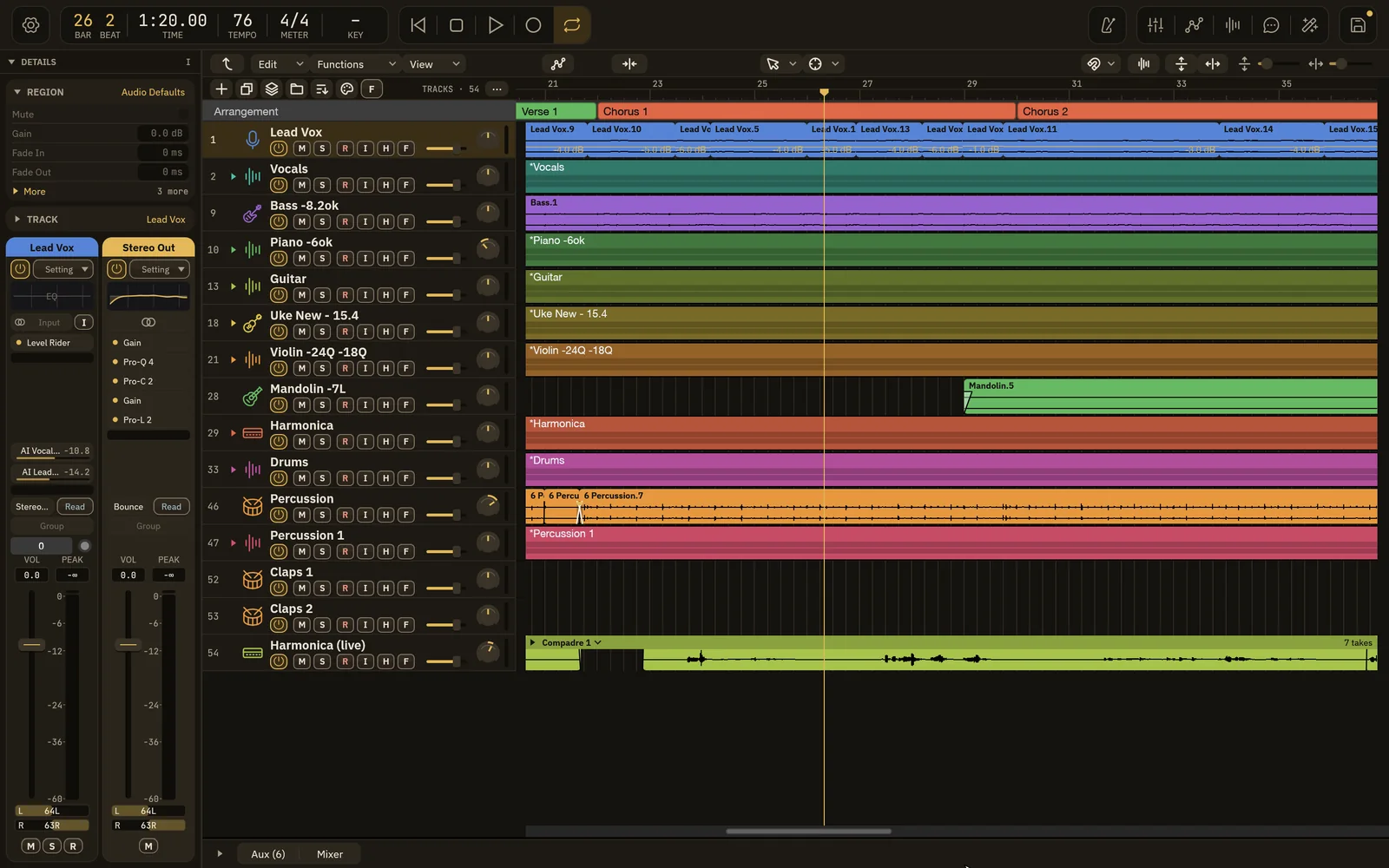
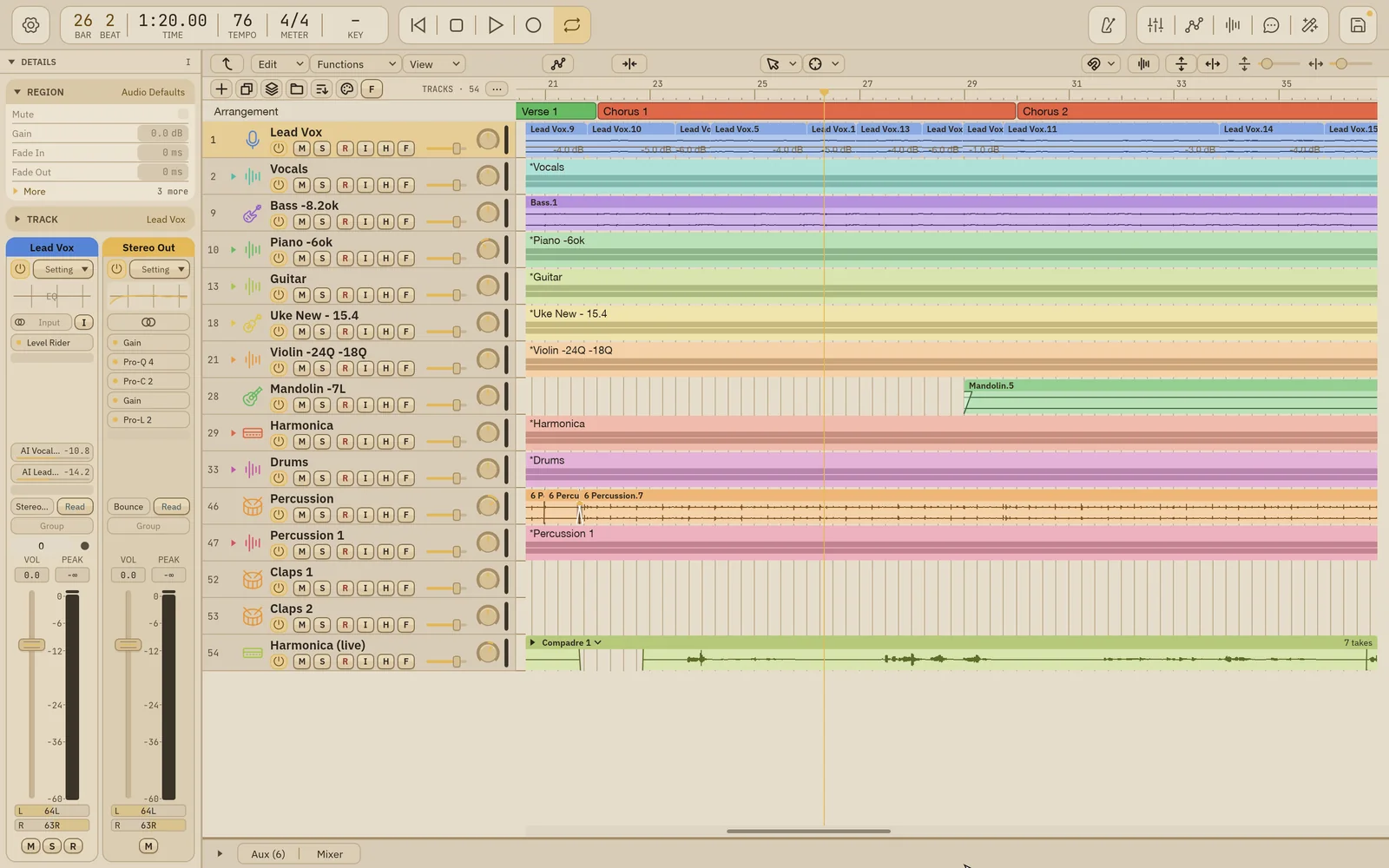
Show, hide and resize
Section titled “Show, hide and resize”- Press I, or choose View › Show Details.
- Click the triangle next to DETAILS at the top of the panel to collapse it to a thin rail along the left edge. Click anywhere on the rail to open it again.
- Drag the panel’s right edge to make it wider or narrower.
REGION
Section titled “REGION”The REGION card shows the selected region’s name and its most-used settings:
| Row | What it does |
|---|---|
| Mute | Mutes the region. |
| Quantize | Shows Off or Quantized. Click it and choose Quantize Audio…. See Quantize. Audio regions only. |
| Gain | The region’s gain in dB. |
| Fade In | The fade-in length. Click the label to switch between Fade In and Speed Up. |
| Fade Out | The fade-out length. Click the label to switch between Fade Out and Slow Down. |
Click More for the rest: Color, Fade In Curve, Fade Type, Fade Out Curve and Lock Time Position. The rows open over the channel strips. Press Escape or click outside them to close them.
Fade Type is Out, X, EqP or X S. For a crossfade, the Fade Out settings control both halves, so the Fade In rows are dimmed. See Fades and crossfades.
With several regions selected, a change applies to all of them.
With no region selected, the card is named Audio Defaults and shows the values a new region gets.
The TRACK card shows the selected track’s name. Click it to open its rows:
- Color: the track color.
- Icon: the track icon. Automatic picks one from the track’s name.
- Group: the linked group the track belongs to, None, or New Group from Selection.
When the selected track is in a linked group, a GROUP pill shows the group’s name. Click it to open the group’s settings:
- Name
- Active: turns the whole group on or off.
- Selection: selecting one member selects the others.
- Volume, Mute, Solo, Record: which controls move together across the group.
A linked group ties controls together. It is not a bus. To sum tracks to one channel, use a Summing Stack. See Tracks area.
Channel strips
Section titled “Channel strips”Below the cards are two channel strips:
- Left: the selected track’s strip.
- Right: where that track goes. This is usually its output, such as the Stereo Out or the Summing Stack the track belongs to. Click a send on the left strip to show the aux that send feeds instead. Click the output slot to switch back.
With nothing selected, the area shows No Track Selected.
The strips work exactly like the mixer’s. See Mixer for each control.
Built so far:1,292 hours24.1 billion tokensabout $8,700 at API pricesupdated Nov 21, 2026 What these numbers mean