
Native Plug-in Editors
Wisdom Pro comes with its own set of mixing plug-ins. They’re always available, need no installing, and each one opens in an editor drawn in the Wisdom look.
The built-in plug-ins
Section titled “The built-in plug-ins”You’ll find these in any Audio FX slot’s menu, grouped by category:
| Category | Plug-ins |
|---|---|
| EQ | Channel EQ, EQ 1-Band |
| Dynamics | Compressor, Channel Strip, Expander/Gate, De-Esser, Maximizer, Level Rider, Smoother |
| Pitch Shift | Pitch Shifter |
| Reverb | Room Reverb, Plate Reverb |
| Delay | Mod Delay |
| Modulation | Chorus, Flanger, Phaser |
| Harmonic | Saturator, Lo-Fi, Rectifier |
| Dither | Dither |
| Other | Gain, Trim, Time Shift, DC Offset Removal, Signal Generator |
To add one, click an empty Audio FX slot and choose it. To open its editor, click the plug-in’s name in the slot. See Hosting third-party plug-ins for the full slot controls.
The editor frame
Section titled “The editor frame”Every built-in plug-in except Level Rider and Smoother (which have their own editors, below) opens in the same frame.
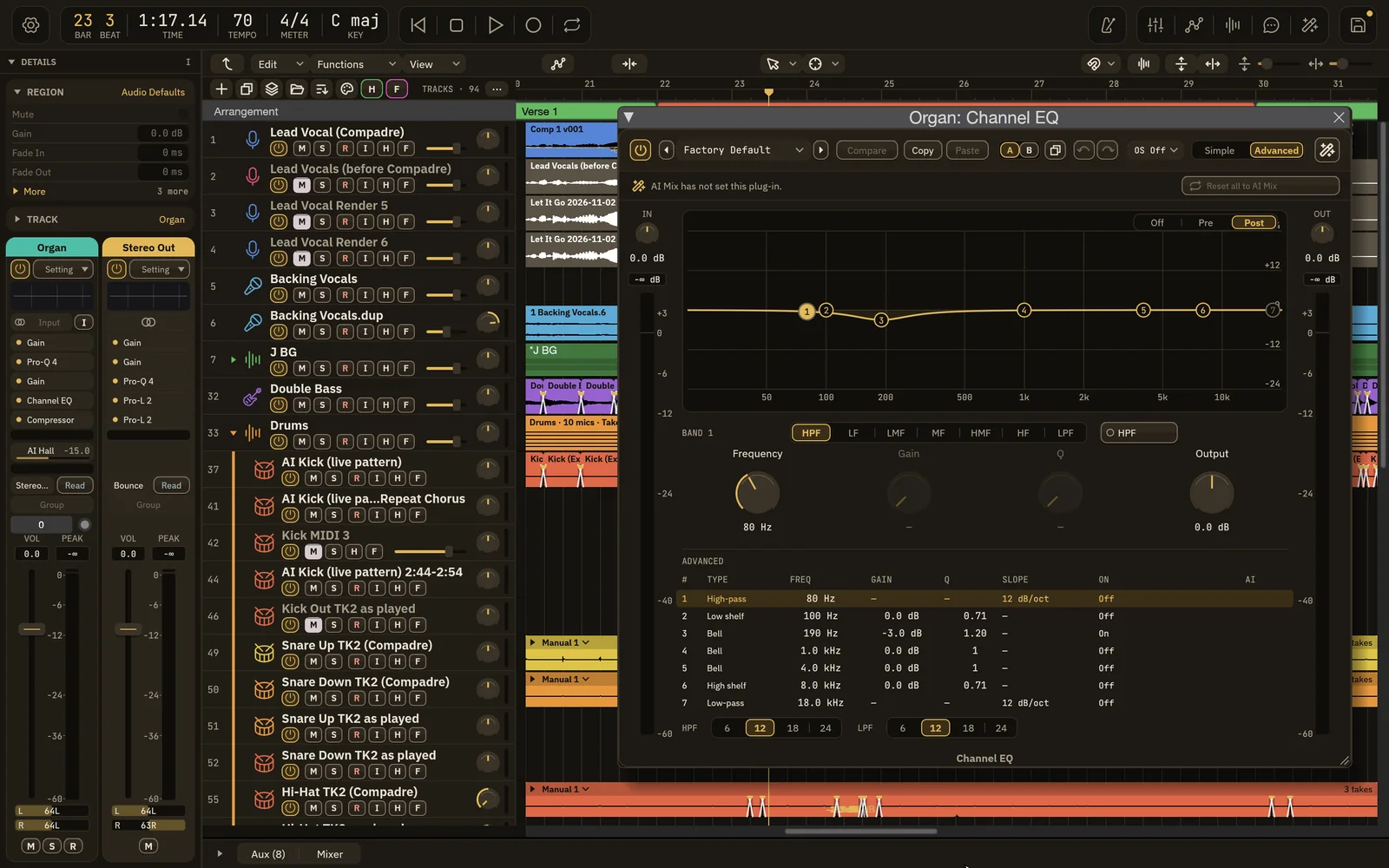
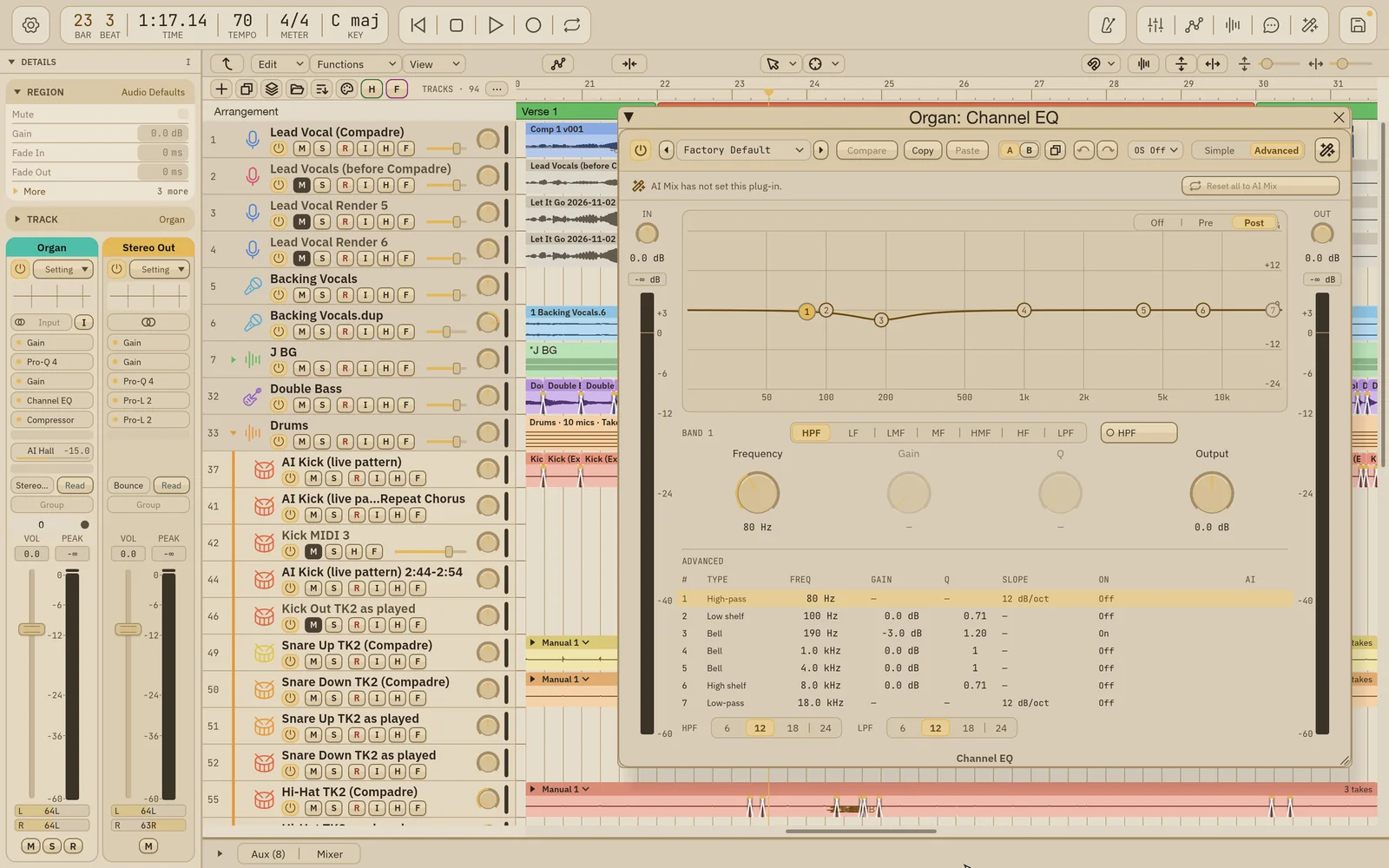
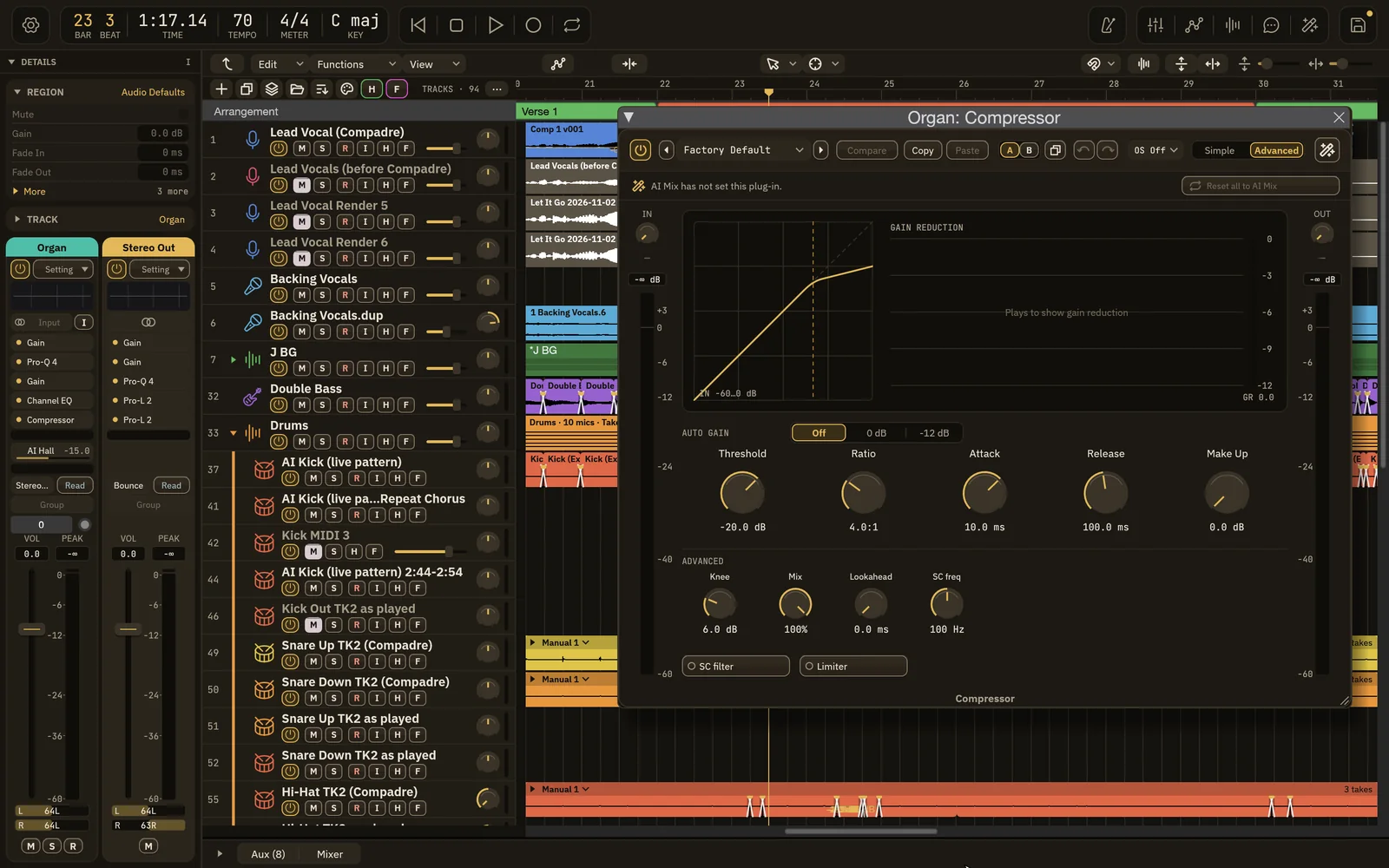
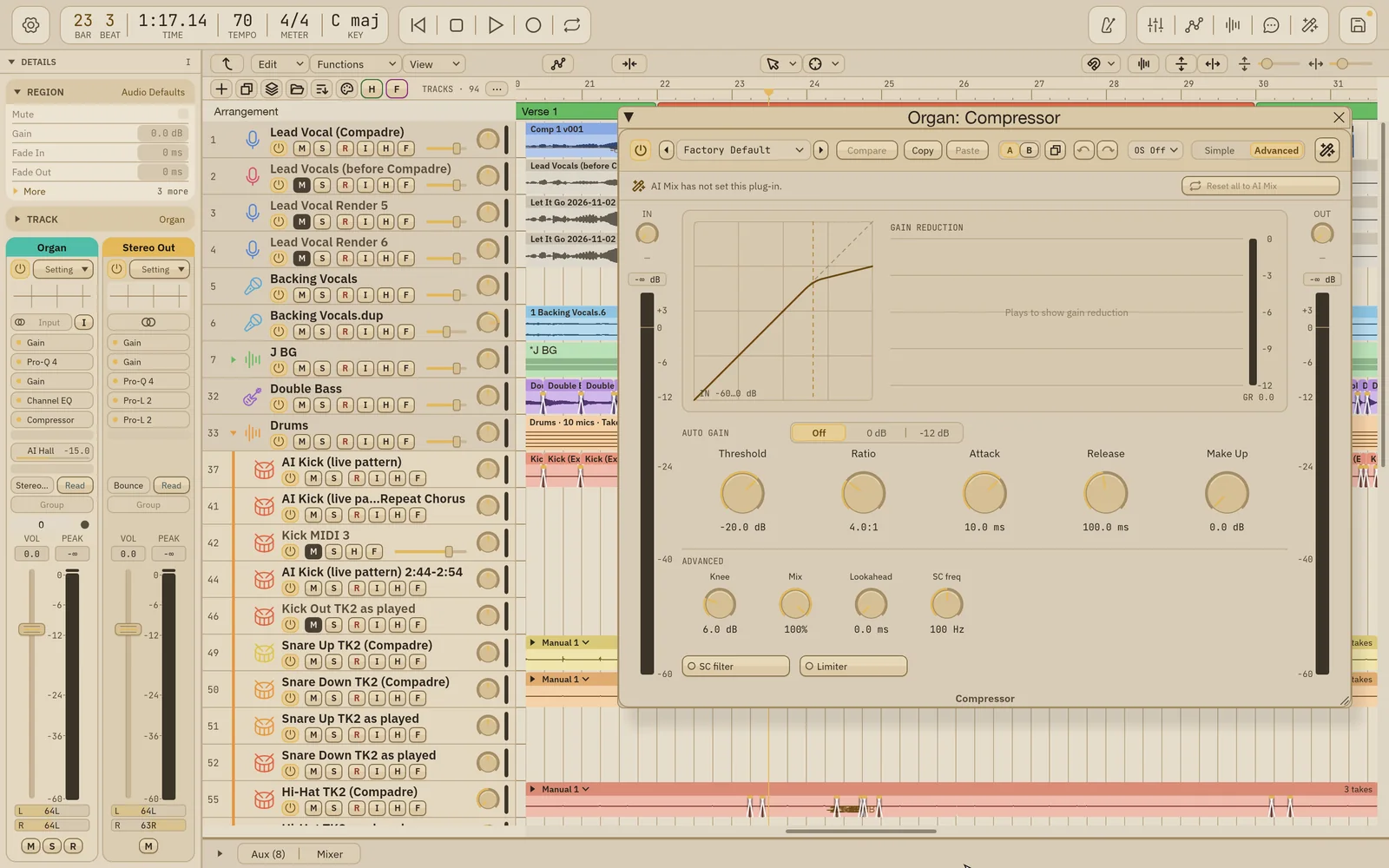
Header
Section titled “Header”From left to right:
- Power: lit while the plug-in plays. Click to bypass it, click again to turn it back on.
- Preset: the arrows step to the previous or next preset; click the name for the preset menu. Factory Default resets every control. To save your own, type a name at the bottom of the menu and click Save. Your saved presets then appear in the same menu.
- Compare: once you’ve changed something, click it to hear the settings as they were loaded. Click again to return to your edits.
- Copy and Paste: copy this plug-in’s settings and paste them into another instance of the same plug-in.
- A / B: two settings to switch between. Click B to try something new while A keeps your first idea, and use the copy button beside them to copy one side to the other.
- Undo / Redo: step back and forward through the changes made in this editor only.
- Simple / Advanced: Simple shows the main controls; Advanced adds the rest.
Every change also goes on the session’s undo history, so ⌘Z works as usual.
IN and OUT
Section titled “IN and OUT”Columns at each side carry an input gain knob and meter on the left, and an output gain knob and meter on the right, for plug-ins that have those controls.
Controls
Section titled “Controls”- Drag a knob or fader to change it. ⇧-drag for fine steps.
- Double-click or ⌥-click a control to return it to its default.
The AI Mix line
Section titled “The AI Mix line”Under the header, a line tells you whether AI Mix set this plug-in. If it did, controls that still sit at AI Mix’s values are marked, and Reset all to AI Mix puts every control back to what AI Mix chose. If AI Mix didn’t set the plug-in, the line says AI Mix has not set this plug-in.
Resizing
Section titled “Resizing”Drag the corner grip to resize the editor, or right-click it to choose 100%, 150% or 200%.
Channel EQ
Section titled “Channel EQ”A seven-band EQ with a frequency graph. Each band has a numbered node you can drag on the graph; click a node to select its band and edit its frequency, gain and Q (or slope, for the low and high cut filters) below.
- Click a band’s button to switch it off or back on.
- Analyzer shows the live spectrum of the audio behind the curve. Pre shows the spectrum before the EQ, Post after it.
Compressor
Section titled “Compressor”Simple shows Threshold, Ratio, Attack, Release and Make Up, with AUTO GAIN choices and a gain reduction display. Advanced adds Knee, Mix, Lookahead and a side-chain high-pass filter that keeps low end from driving the compressor, plus a LIMITER switch that limits at the threshold instead of compressing by the ratio.
A single fader with a dB scale and a readout. Drag to change it, ⇧-drag for fine steps, and double-click to return to 0 dB.
Level Rider
Section titled “Level Rider”Level Rider (shown as Rider in narrow slots) rides a part’s level for you: it writes a ride curve that the plug-in plays back, instead of moving your fader.
- Set the target level and how far the ride may go up or down (Range Up, Range Down).
- Choose how it measures (RMS or LUFS) and what it’s riding (Vocal or Music). In Vocal mode it ignores rumble and plosive thumps and never pushes breaths up; Breath Cut can tuck breaths further down.
- Pick a Speed: Fast, Medium, Slow, or a note length (1/8, 1/4, 1/2, 1 Bar) that follows the tempo.
- Optionally choose a Music sidechain, so the rides respond to the rest of the mix.
- Click Write Rides. Wisdom Pro analyzes the part and writes the rides.
The status shows how many ride points were written. Clear Rides deletes them. Bypassing the plug-in turns the rides off but keeps them.
You can also run this from an Audio FX menu’s Tools section with Auto Clip Gain….
Smoother
Section titled “Smoother”Smoother is a dynamic resonance suppressor. It pulls down harsh or boomy frequencies only when they jump out, and leaves the rest alone.
The graph shows the incoming spectrum rising from the bottom and the reduction Smoother applies hanging from the top.
- Drag the two handles at the top to set the focus range where Smoother works.
- Drag the dividers at the bottom to split the range into up to four bands. Each band can be switched off or given its own sensitivity and reduction.
- Sensitivity and Reduction are the two main knobs.
- Listen lets you hear only what Smoother is removing. Bypass lets you hear the track without it.
- Mix and Output sit beside them; the remaining controls are under More.
- Start from offers starting points: Gentle, Harsh Highs, Sibilance, Muddy Lows and Mix Bus.
Other plug-ins
Section titled “Other plug-ins”The remaining built-ins (Expander/Gate, De-Esser, Maximizer, the reverbs and delay, modulation and harmonic effects, and the utilities) use the same frame, each with a display suited to it, such as a gain reduction meter, a delay or LFO view, or a harmonics view.
- Time Shift delays a track by a set offset. On a mono track, Left Offset delays the whole track; Right Offset needs a stereo track or aux.
Built so far:1,292 hours24.1 billion tokensabout $8,700 at API pricesupdated Nov 21, 2026 What these numbers mean