
AI Assistant
The AI Assistant lets you ask for a change in plain words, such as “the guitar is buried in the chorus” or “add a little air to the lead vocal”, and an AI agent makes it in your open session while you watch. Every request lands on the normal undo history and gets its own Undo button.
Opening the assistant
Section titled “Opening the assistant”Click the Assistant button (the Ask AI icon) in the header. The chat opens in the left column, under the Region and Track sections, and the column widens to make room. Click the AI Assistant section heading to hide it again.
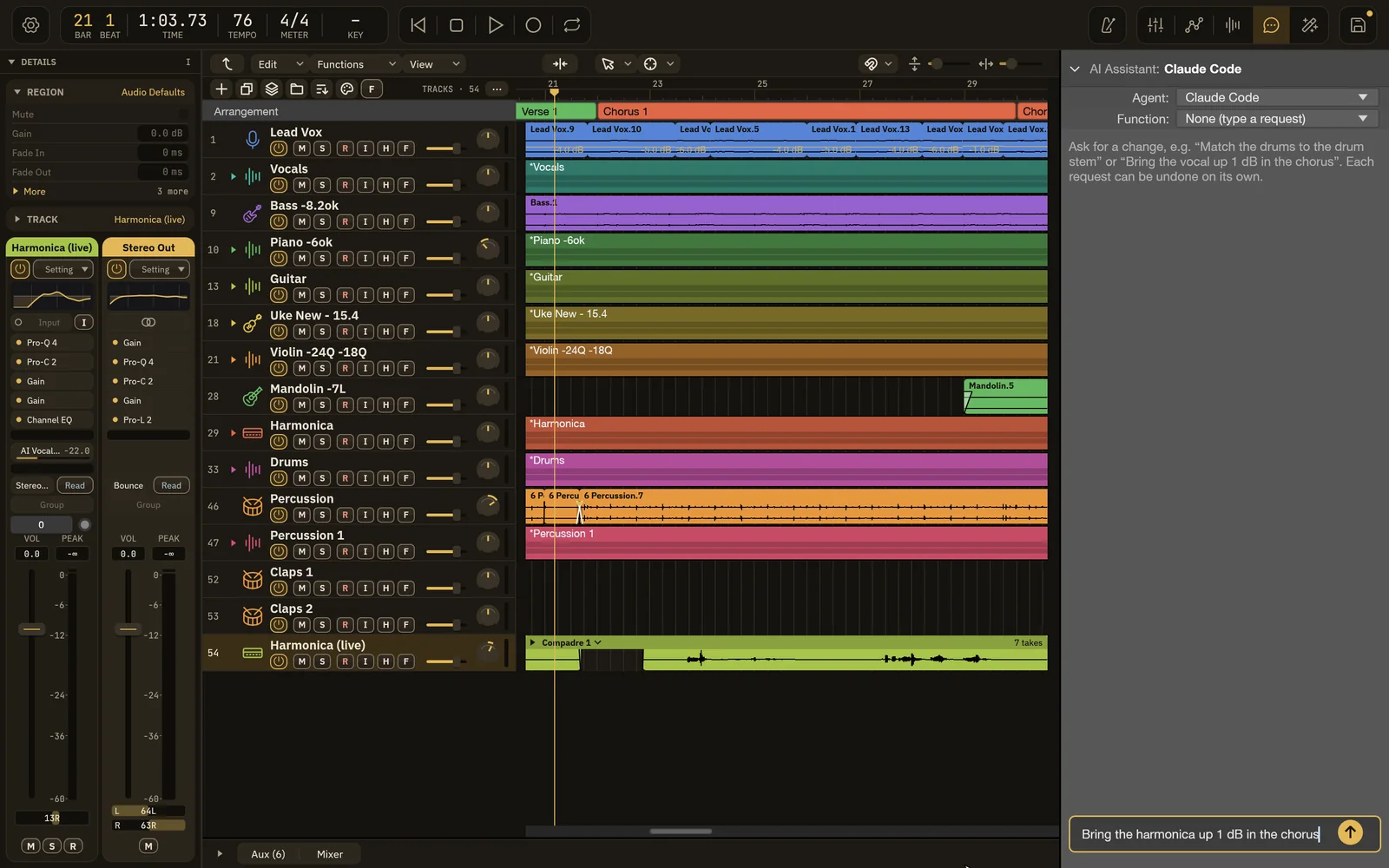
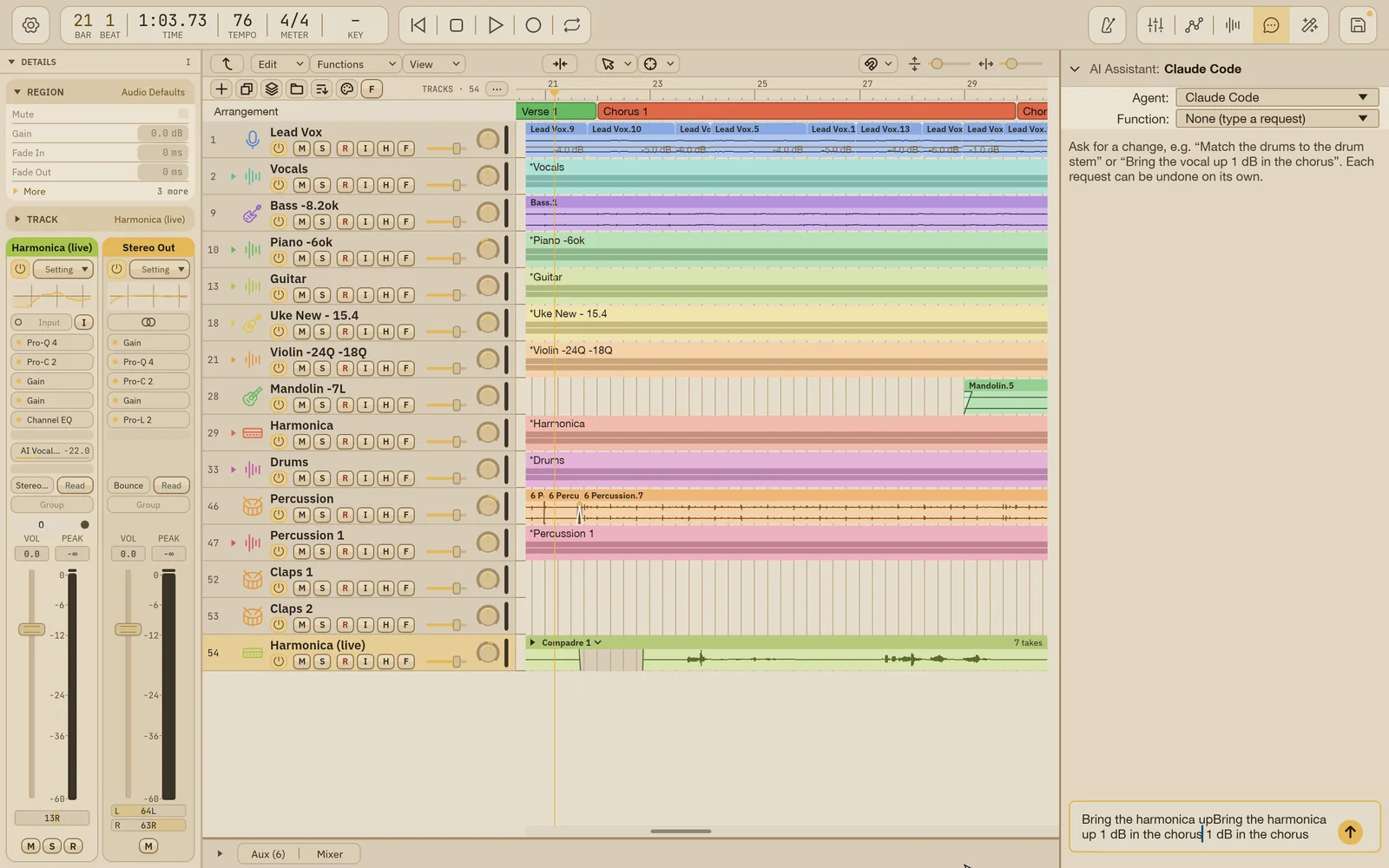
The assistant isn’t available on the Compadre screen, and you can’t send a request while recording.
Before you start: choose an agent
Section titled “Before you start: choose an agent”The assistant hands your request to an AI agent program on your Mac. Pick one in the Agent row:
| Agent | What you need |
|---|---|
| Claude Code (default) | Claude Code installed and signed in. |
| Codex | Codex installed and signed in. |
| OpenRouter | Codex installed, plus an OpenRouter API key. Choose a model in the Model row; only free models (ending in :free) are allowed, so the assistant can’t spend credits. Auto picks one for you. |
| Custom command | A command of your own, typed in the Command row. |
The agent can only act on Wisdom Pro through the app’s own tools. It doesn’t get access to your files or the rest of your Mac through the assistant.
Asking for a change
Section titled “Asking for a change”- Type your request in the box (Ask for a mix change…).
- Press Enter or click Send.
- While the agent works, the box reads Working… and Send becomes Stop. Click Stop to cancel.
When the request finishes, you’ll see:
- Your request and the agent’s short reply (at most a few plain sentences: what it changed and what it measured).
- Details, showing how many actions it took (Details · 3 actions) and what it looked at. Click to expand.
- Undo, to take back exactly what that request changed.
Follow-up requests continue the same conversation, so you can say “a bit less” or “now do the same on the backing vocals”.
How the assistant works on your mix
Section titled “How the assistant works on your mix”- It uses your preferred third-party plug-ins where it can, and gives each plug-in it adds settings based on measurements, not factory defaults. See How AI Mix uses your plug-ins.
- When a request is about how something sounds, it measures the result instead of assuming.
- For feedback like “the guitar is buried”, it makes one small move at a time and keeps it only if the measured score improves.
- It adds reverb and delay through shared return buses, never directly on a track.
- It levels vocals with the Level Rider, not by moving your fader.
- It never saves, opens or closes a session unless you ask.
Each request’s Undo removes only the steps that request added.
- If you (or another request) changed something afterwards, the button is turned off, so it can never take your own edits with it. Its tip reads Later changes came after this request; undo those first.
- After you undo, the request shows Undone. A request that changed nothing shows No changes.
- Everything the assistant does is also on the session’s undo history, so ⌘Z and Window › Undo History work too.
Canceled or failed requests
Section titled “Canceled or failed requests”If you stop a request, anything it changed before you stopped it stays. Use its Undo or the Undo History to remove it.
If a request fails (for example, the agent hit a usage limit), click its retry button to Try again with the same agent, or switch the Agent or Model first and try again.
Functions
Section titled “Functions”The Function row offers ready-made tasks that the assistant runs the way you’ve liked them before. Choosing one fills in the request for you; you can still edit it before sending.
| Function | What it does |
|---|---|
| Tighten vocal timing | Lines a vocal up with a reference vocal or the music, working on a copy. Pick the part in the Vocal row. |
| Tighten drum timing | Measures the drums against the grid or a groove, then tightens them. Select the drum tracks first; the first one is the guide mic. |
| Measure drum timing | Measures the selected kit against itself and the grid and shows a table. Changes nothing. |
The Follow row sets what the part lines up to: Measure first (let the assistant measure and decide), The grid (or The music (downbeats) for vocals), or another track.
Timing fixes move whole phrases so the downbeats land; they never cut or slip notes inside a phrase. See Phrases and Quantize.
Conversation history
Section titled “Conversation history”The conversation is saved with the song. When you reopen it, the most recent requests come back in the panel. Their Undo buttons are off, because the session has moved on since; use the Undo History instead.
To keep a copy, click Copy all to copy the whole conversation as plain text, or use the copy button on a single request.
Built so far:1,292 hours24.1 billion tokensabout $8,700 at API pricesupdated Nov 21, 2026 What these numbers mean